Open-Source Software
Various of open-source softwares, including some famous projects: Linux, Android that powers most of the mobile phones and servers nowadays.
Open-source software (OSS) is software with source code that anyone can inspect, modify, and enhance. Distributed under licenses that comply with the Open Source Definition, OSS allows users to use, change, and share the software freely. The benefits of using OSS include cost-effectiveness, flexibility, security, vendor independence, and community support. Many OSS options are free, making them budget-friendly, and the availability of source code allows for customization to meet specific needs. The open nature of OSS means that security issues can be quickly identified and resolved by the community. Additionally, users are not tied to a single vendor, providing more freedom in software choices. Active communities often support OSS projects, offering updates and improvements. Contributing to OSS can enhance your skills, build your portfolio, and expand your professional network, providing valuable experience and career growth opportunities.
Open-Source Software License
A software license is a legal instrument that governs the use, modification, and redistribution of software. It defines the rights and responsibilities of the users and developers, ensuring that the software is used in a manner consistent with the author’s intentions. Here are some commonly used open-source licenses:
MIT License
The MIT License is a permissive license that allows users to do almost anything with the software, as long as they include the original copyright and license notice in any copies or substantial portions of the software. It is simple and concise, making it a popular choice for many open-source projects.
BSD License
The BSD License is another permissive license similar to the MIT License. It allows for redistribution and use in source and binary forms, with or without modification, provided that certain conditions are met. The BSD License is known for its simplicity and compatibility with other licenses.
GPL License
The GNU General Public License (GPL) is a copyleft license that requires any derivative work to be distributed under the same license. This means that if you modify and distribute the software, you must also provide the source code and allow others to use, modify, and distribute it under the same terms. The GPL ensures that the software remains free and open for all users.
Apache License
The Apache License is a permissive license similar to the MIT License but with additional terms and conditions. It provides an express grant of patent rights from contributors to users, which helps protect users from patent litigation. The Apache License is often used for projects that require a more comprehensive legal framework.
Creative Commons
Creative Commons licenses are not typically used for software but are common for other types of creative works, such as documentation, images, and videos. These licenses allow creators to specify the permissions and restrictions for using their work, ranging from allowing any use with attribution to more restrictive licenses that limit commercial use or derivative works.
Including a LICENSE file in your repository is crucial as it clarifies the legal terms under which your project’s code can be used, modified, and distributed. It helps protect both the authors and users by clearly defining the rights and obligations associated with the software.
Git and GitHub
Git is a distributed Version Control System (VCS), which enables easy tracking of code changes, collaboration, and sharing. With Git, you can maintain a record of your project’s progress and revert to previous versions if necessary. It also simplifies collaboration among groups of individuals, allowing them to merge their changes into a single final source.
GitHub is the hosting platform for your repository. It’s widely used across various software industries and beyond for collaboration and project history management. Other platforms includes GitLab and Bitbucket.
GitHub Workflow
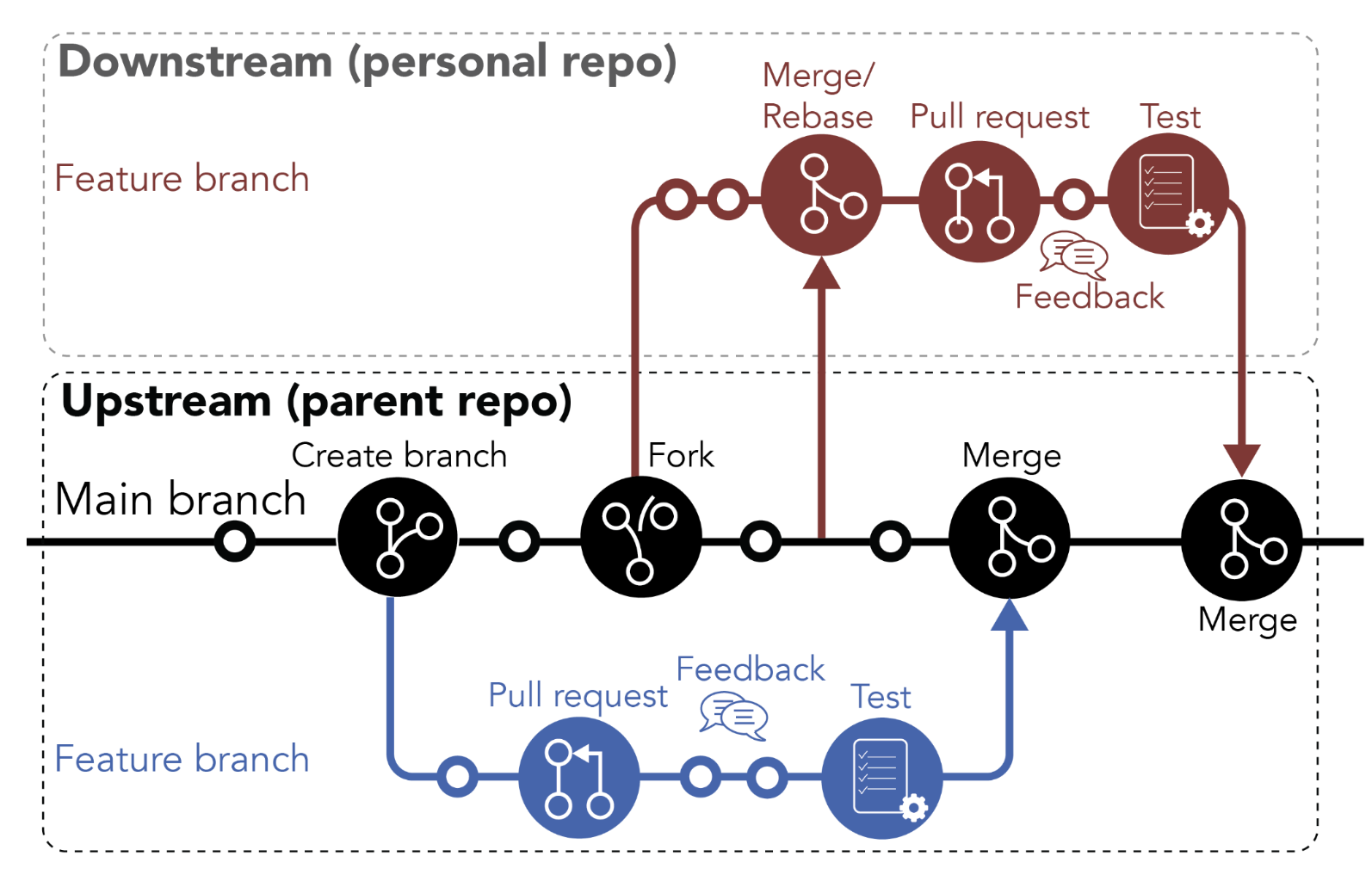
GitHub workflow.
The GitHub flow is a lightweight workflow that facilitates experimentation and collaboration on projects without the risk of losing previous work.
Repositories
A repository serves as the repository for your project’s work—think of it as your project folder. It encompasses all your project’s files and revision history. You can work within a repository independently or invite others to collaborate on specific files.
When you create a repository on GitHub, it is stored remotely in the cloud. To work on it locally, you can clone the repository using Git. This allows you to fix issues, manage files, and push changes using your preferred tools. Cloning retrieves all the repository data, including all versions of files and folders, which is useful for experimenting and reverting to previous versions if needed.
- You can use
git cloneto clone a repo to your local directory.
Additinal Files in a Repositories
README.md: Repositories also contain README files. A README explains your project’s purpose, usage instructions, and other relevant information. This README guides you through learning Git and GitHub. 😄.git: This directory contains all the metadata for the repository, including the history, configuration, and the objects that make up the content of the repository. It is created when you initialize a new Git repository and should not be modified manually..gitignore: This file specifies which files and directories should be ignored by Git. It is used to avoid committing temporary files, build artifacts, and other files that are not necessary to include in the repository.SECURITY.md: This file provides information about the security policies of the project, including how to report vulnerabilities and security issues. It is used to ensure that users and contributors know how to handle security-related matters.LICENSE: This file contains the legal terms under which the project’s code can be used, modified, and distributed. It is important to include a LICENSE file to clarify the permissions and limitations associated with the project’s code..github: This directory contains configuration files for GitHub-specific features, such as issue templates, pull request templates, and workflows for GitHub Actions. It helps standardize and automate repository management tasks.
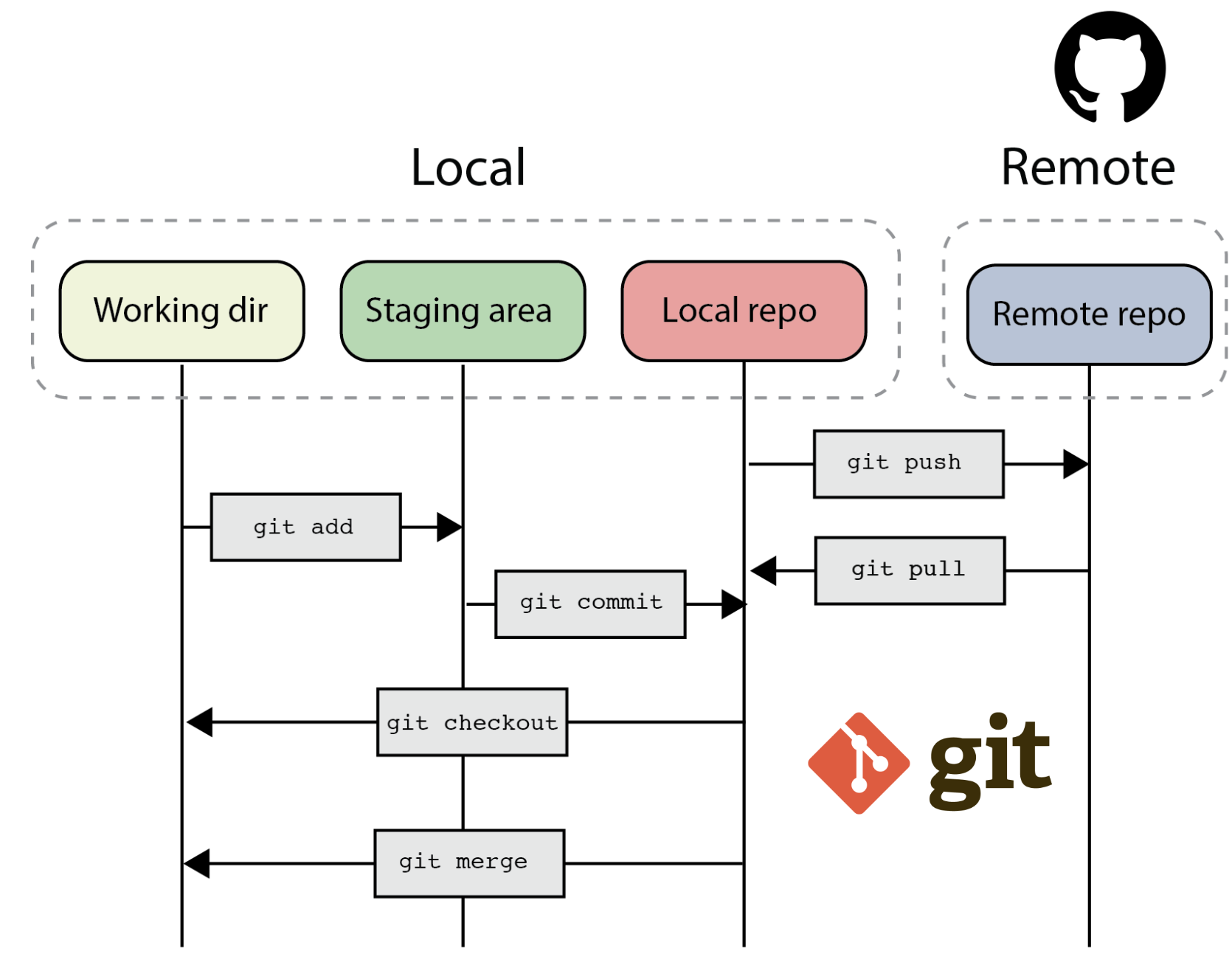
Some git commands.
Committing and pushing
Committing and pushing are the steps to add changes from your local machine to the remote GitHub repository. Create a commit to “checkpoint” your changes, and add a meaningful commit message to describe the work (e.g., “Added README”). Use the push command to update the remote repository with your commits. These steps may seem unfamiliar initially, but you’ll get used to them!
Branch
Branches on GitHub allow you to isolate work that you don’t want to merge into your main project yet. They are useful for developing features, fixing bugs, or experimenting safely. Typically, you create a new branch from the default branch (main), which gives you a separate working copy of your repository. Once your changes are reviewed or you are satisfied with them, you can merge them back into the main branch.
Forks
Forks create a copy of a repository, allowing you to experiment with changes without affecting the original project. They are commonly used for contributing to open-source projects.
Pull requests
Pull requests allow you to share changes made in branches and get feedback from collaborators. Open a pull request to discuss, review, and refine your changes. You can request specific reviewers and, once approved, merge the pull request into the main branch.
Issues
Issues on GitHub help track enhancements, tasks, or bugs. They organize and prioritize project tasks, allowing clear communication. Use issues to report bugs or suggest features for open-source projects.
Furthermore, you can connect pull requests and issues to demonstrate the progress of a fix and automatically close the issue when the pull request is merged.
To learn more about these concepts, read the following resources:
Your User Profile
Your user profile showcases your work, contributions, and interests. It includes your repositories and a profile README, which can highlight your skills for future employers.
For more on managing your profile and README, see Managing Your Profile README.
You can style your issues, pull requests, and files using Markdown. This helps organize information and makes it easier to read. Enhance your content with gifs and images!
Learn more about GitHub’s markdown syntax at Basic Writing and Formatting Syntax.
Engaging with the GitHub community
The GitHub community is diverse and inclusive, comprising individuals from various backgrounds and skill levels. You’ll find students like you, professional developers, hobbyists working on open-source projects, and explorers embarking on their own journey into software development. There are numerous ways to interact with the larger GitHub community, but here are three initial avenues to explore.
Starring repositories
If you come across a repository that interests you or you want to keep track of it, consider starring it! Starred repositories are used as signals to surface better recommendations on GitHub.com/explore. To access your starred repositories, simply visit your user profile.
For more information on starring repositories, refer to “Saving Repositories with Stars”.
Following users
You can follow individuals on GitHub to receive notifications about their activities and discover projects within their communities. By following a user, their public GitHub activity will be displayed on your dashboard, allowing you to stay updated on their latest endeavors.
For further guidance on following users, consult “Following People”.
Browsing GitHub Explore
GitHub Explore serves as an excellent platform to explore and discover new projects, events, and developers.
Visit the GitHub Explore website at github.com/explore to enhance your exploration experience. The more you interact with GitHub, the more personalized your Explore view will become.